A side by side video comparison plays two versions of the same video next to each other, synced to the same frame, so you can see exactly what changed. You can build one in an editing timeline, generate one with FFmpeg, or use a dedicated comparison tool. Pick by need: a quick look, a measurable score, or a team QA record.
Post teams compare versions constantly: the old grade against the new one, the plate against the VFX shot, the horizontal master against the vertical conversion, the original scan against the restoration. Watching one version and trusting memory does not work for subtle changes. This guide covers why and when to compare, four practical methods with verified FFmpeg syntax, what to look for, and the traps that make comparisons misleading.
Key takeaways
- A side-by-side video comparison is only reliable when both versions are locked to the same frame; a one-frame offset creates false differences everywhere.
- FFmpeg can stack two videos with the hstack filter, show pixel differences with the blend filter in difference mode, and score changes with the psnr and ssim filters.
- Objective metrics such as PSNR, SSIM and Netflix’s open-source VMAF tell you how much changed, but a human still has to judge whether the change is correct.
- Mismatched frame rates, resolutions, pixel formats or color ranges are common causes of misleading comparisons, so align inputs before judging anything.
- For team QA, the comparison view should also hold timecoded notes and track each issue until it is resolved.
Table of contents
- What is side-by-side video comparison?
- Why compare two versions of a video?
- Four ways to compare two videos side by side
- What to look for in a side by side video comparison
- A version comparison checklist
- Pitfalls that make comparisons misleading
- Comparing versions as a team with PeakView
- Choosing the right method for the job
- Frequently asked questions
What is side-by-side video comparison?
It is the practice of playing a reference version and a changed version at the same time, in sync, in adjacent panels or overlaid on each other. The aim is to make differences visible instead of remembered.
“In sync” is the key phrase. Both versions must show the same frame at the same moment. In professional workflows, that frame is identified by timecode; SMPTE explains that ST 12 labels individual frames with hour:minute:second:frame codes. When both versions share timecode and frame rate, lining them up is simple. When they do not, you must align them first, or the comparison lies.
There are three common layouts:
- Side by side: two panels, left and right. Best for composition, framing and different aspect ratios.
- Wipe or split: one frame, with a movable divider between versions. Best for color and fine detail.
- Difference: a computed image showing only what changed. Best for catching tiny, unexpected changes.
Why compare two versions of a video?
You compare versions to confirm that intended changes happened and that nothing else changed by accident. Almost every stage of post creates a before and an after worth checking.
- Reframing and aspect-ratio conversion. Did the vertical version keep the subject and the story in frame compared with the horizontal master?
- VFX. Did the new comp remove the rig without softening the background or shifting the grain?
- Color correction. Did the new grade hold across every shot in the scene, including skin tones?
- Restoration. Did dust and scratch removal also erase real detail?
- Upscaling. Is the higher-resolution version genuinely sharper, or just crisper-looking with new artifacts?
- Lip sync and audio. After a new mix or dub, does picture still match sound?
- Encode QC. Did the delivery encode introduce banding, blocking or dropped frames compared with the master?
Format conversion is a good example. Moving a library between aspect ratios, as covered in our guide to converting horizontal video to vertical without losing quality, always ends with a check of each output against its source. The same logic applies to any automated or AI-assisted step: the faster a tool produces a new version, the more important a careful human comparison becomes.
Four ways to compare two videos side by side
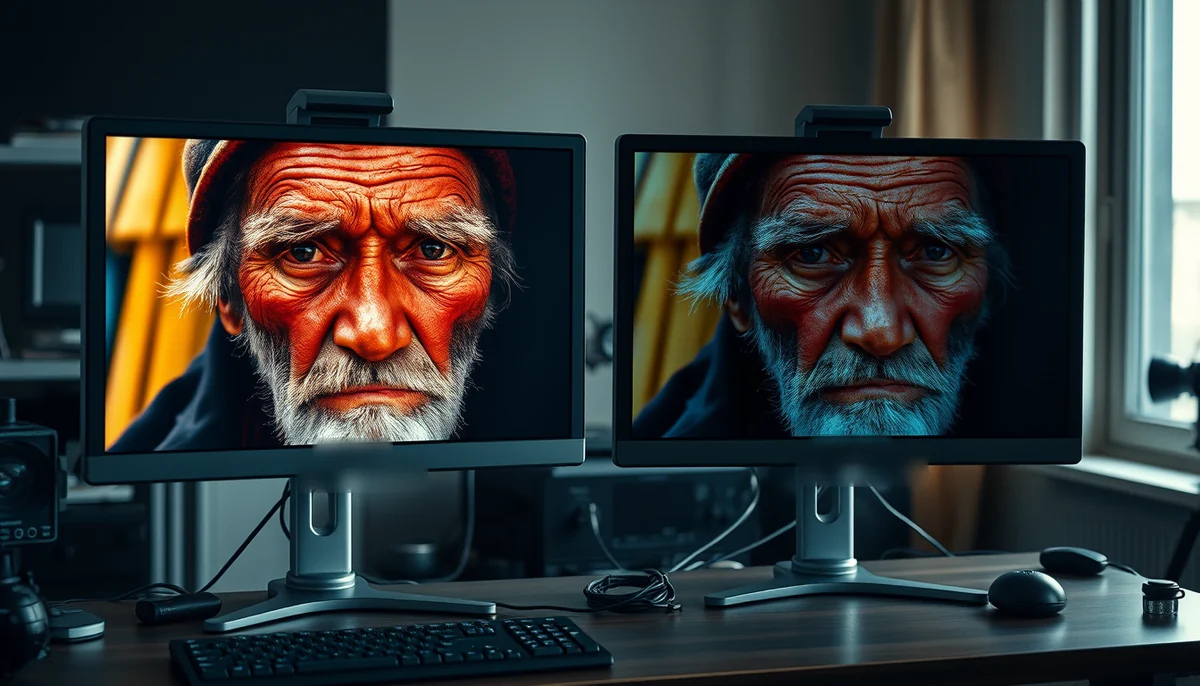
The four practical methods are an editing timeline, FFmpeg stacking or difference filters, objective quality metrics, and a dedicated comparison workspace. Many teams use more than one.
1. Split screen in your editing software
Place both versions on stacked tracks, align them to the same start frame, then crop or scale each to half the frame. Most editing applications can do this, and it works well for a quick visual check by one person. The downside is that it is manual, notes live elsewhere, and sharing means rendering a new file.
2. Stack or difference with FFmpeg
FFmpeg is free and scriptable. According to the FFmpeg filters documentation, the hstack filter stacks inputs horizontally, and all streams must share the same pixel format and height. A basic two-up comparison looks like this:
ffmpeg -i original.mov -i revised.mov -filter_complex "[0:v][1:v]hstack=inputs=2" -an compare.mp4If the heights differ, scale one input to match first. For a difference view, the same documentation lists a difference mode for the blend filter, which combines two inputs into one output:
ffmpeg -i original.mov -i revised.mov -filter_complex "[0:v][1:v]blend=all_mode=difference" -an difference.mp4In the output, unchanged areas go dark and changed areas light up. It is a fast way to spot an accidental change in a shot that was supposed to be untouched.
3. Score the difference with metrics
When you need a number, FFmpeg’s psnr and ssim filters compare a main input against a reference. The documentation notes that both inputs must have the same resolution and pixel format, and that frames are compared one by one. Writing per-frame results to a file shows where the differences are:
ffmpeg -i revised.mov -i original.mov -lavfi "[0:v][1:v]psnr=stats_file=psnr.log" -f null -For perceptual quality, especially encode comparisons, many engineers use VMAF, Netflix’s open-source perceptual video quality algorithm, whose library also includes PSNR, SSIM and MS-SSIM implementations. Metrics are excellent for encode QC and regression testing. They are poor at creative judgment: a deliberate grade change scores as “different” just like a mistake does.
4. Use a dedicated comparison tool
Dedicated tools play two versions in sync with frame stepping, zoom and often a wipe or overlay mode, without rendering anything. Team-oriented tools add comments pinned to timecode, sharing and resolution tracking. This is the best route when several people need to agree on what changed and what still needs fixing.
Key insight: Metrics tell you how much changed. Only a person can tell you whether the change was intended. Good QA uses both: numbers to find the frames, eyes to judge them.
What to look for in a side by side video comparison
Look first for what should have changed, then for what should not have. A useful comparison answers both questions shot by shot.
- Framing and composition: subject position, headroom, eyelines, on-screen text and logos kept inside safe areas.
- Color and exposure: skin tones, shadow detail, highlight roll-off, consistency from shot to shot.
- Detail and texture: grain structure, edge sharpness, fine patterns such as fabric or foliage.
- Artifacts: banding in gradients, blocking in dark areas, halos around edges, flicker.
- Timing: dropped or duplicated frames, cut points, lip sync.
- Continuity: props, limbs and lighting that stay consistent through movement.
Step frame by frame through transitions and fast motion, where most problems hide. Zoom to 100 percent or more on detail-heavy shots. Watch at least one full pass at normal speed too: some problems, such as flicker, pacing changes or a drifting lip sync, only show up in motion and disappear when you pause. Finally, compare on a calibrated display where you can; a side by side video comparison on an uncalibrated laptop screen can hide real color shifts or invent ones that are not there.
A version comparison checklist
Use this table to match the job to the method and the thing to check.
| Job | Best comparison view | What to check first |
|---|---|---|
| ReFrame or aspect-ratio conversion | Side by side, different aspect ratios | Subject stays in frame, story beats remain visible, text inside safe area |
| VFX update | Wipe plus difference | Change limited to the intended area, grain and edges match the plate |
| Color pass | Wipe or side by side | Skin tones, shot-to-shot consistency, highlight and shadow detail |
| Restoration | Side by side at high zoom | Damage removed without erasing real detail or texture |
| Upscaling | Side by side at 100 percent or more | Real added detail vs oversharpening, halos, waxy faces |
| Lip sync or new mix | Synced playback with audio | Mouth shapes against dialogue, sound effects on their hits |
| Delivery encode | Difference plus metrics | Banding, blocking, dropped frames, per-frame metric dips |
Pitfalls that make comparisons misleading
Most bad comparisons come from inputs that were never truly aligned. Check these before trusting any result.
- Frame offset. If one version has an extra frame at the head, every frame looks different. Align on a clear visual event, such as a hard cut, and confirm by stepping through.
- Frame rate mismatch. Comparing a 23.976 fps master with a 25 fps version drifts over time. Compare like with like, or conform first.
- Timestamps from different containers. FFmpeg’s documentation shows resetting timestamps (with setpts) when comparing files from different containers, so frames pair up correctly.
- Resolution and pixel format. Stacking and metric filters expect matching formats. Converting one input changes it, so note what you converted.
- Color range and transfer. A limited-range file read as full range looks washed out and creates false color differences.
- Compression noise. Two encodes of the same master will never be pixel-identical. Judge difference maps with that in mind.
Comparing versions as a team with PeakView
For a single engineer, FFmpeg and a timeline are often enough. When a director, producer, colorist, VFX artist, client and QA team all need to agree on what changed, the comparison has to become a shared record.
PeakView, CineVision’s side-by-side QA workspace, is built for that. You upload one cut or two matching versions and watch them side by side, synced to the frame, including different aspect ratios, different cuts, or before and after passes. Notes are left at the exact frame and timecode and can flag a visual problem, audio issue, sync error, performance note or reframing concern. You can make corrections inside PeakView, respond to notes and check each issue off as it is resolved. When the pass is done, QA and delivery teams can export notes with exact timecodes or hand off a JSON file to the editorial pipeline.
It fits naturally after format conversion. A title converted with ReFrame’s AI aspect-ratio conversion can be checked against its original master in one shared view before it ships.
Key insight: A comparison only helps the team if the note travels with the frame. Screenshots in email lose the timecode, the version and the status.
Choosing the right method for the job
Pick the lightest method that answers your question. For a quick personal check, a split screen in your timeline is fine. For repeatable checks or encode QC, script FFmpeg stacking, difference views and metrics. For work that several people must review and sign off, use a comparison workspace that keeps timecoded notes and resolution status in one place.
Whichever you choose, align the inputs first, compare like formats with like, and let metrics point you to frames while people make the final call. For more on how output formats differ, see our guide to converting between aspect ratios. And when your next reframe, grade or VFX pass needs a shared before-and-after check, open both versions in PeakView.